
The frustrating truth is that your advertised internet speed has little to do with constant 4K buffering; the real culprit is network instability.
- Buffering is caused by high latency, jitter, and “bufferbloat,” not just insufficient bandwidth.
- A wired connection, proper Quality of Service (QoS) router settings, and diagnosing hardware bottlenecks are more effective than upgrading your plan.
Recommendation: Instead of calling your ISP, your first step should be to run a bufferbloat test to diagnose the true quality of your connection under load.
You pay for a “fast” internet connection, you own a brilliant 4K television, and you’ve queued up the latest blockbuster. Yet, ten minutes in, you’re staring at the most dreaded icon in modern entertainment: the buffering wheel. The common advice is predictable: upgrade your plan, get more megabits per second (Mbps), and throw more money at your Internet Service Provider (ISP). But what if the problem isn’t the size of your internet pipe, but the quality of the flow within it?
Most troubleshooting guides focus on bandwidth alone, failing to address the more insidious issues that plague modern networks. They tell you to close background applications or move your router, but they rarely dive into the technical reasons your pristine 4K stream stutters while a simple web page loads instantly. These solutions overlook the critical concepts of latency, jitter, and a network-killer known as bufferbloat.
This guide takes a different approach. We will move beyond the simplistic “more speed” myth to uncover the real reasons behind your streaming woes. The key isn’t necessarily a faster plan, but a smarter, more stable network. We will dissect the technical bottlenecks from your router to your TV, providing practical, expert-level solutions that focus on optimizing traffic quality, not just quantity.
By understanding the true nature of the problem, you can take control of your network and finally achieve the smooth, uninterrupted 4K experience you’re paying for. This article will walk you through diagnosing your connection’s true health, configuring your hardware for optimal performance, and making informed decisions about your setup that save both money and frustration.
This comprehensive guide is structured to take you from diagnosis to solution. We will explore why “fast” internet fails, how to configure your router to prioritize what matters, and how to identify the exact piece of hardware causing the bottleneck. The following table of contents outlines the path to a buffer-free 4K experience.
Summary: A Practical Guide to Eliminating 4K Video Buffering
- Why Your “Fast” Internet Still Buffers 4K Video Streams?
- How to Configure QoS Settings to Prioritize Streaming Traffic?
- Ethernet or Wi-Fi 6: How to Design VR Experiences That Don’t Cause Motion Sickness?
- The Data Cap Mistake That Leads to Overage Charges of $50+
- Diagnosing the Hardware Bottleneck: TV, Stick, or Modem?
- Why 1080p Blu-ray Looks Better Than 4K Streaming?
- The $100 HDMI Cable Myth That Wastes Your Audio Budget
- Native 4K vs. Upscaled: Is the Hardware Cost Justified?
Why Your “Fast” Internet Still Buffers 4K Video Streams?
The number one misconception about streaming is that bandwidth is the only metric that matters. Your ISP advertises speeds of 100, 500, or even 1000 Mbps, yet your 4K stream still grinds to a halt. This happens because streaming platforms have highly variable requirements; according to platform requirements, 4K streaming needs a sustained 25-50 Mbps. While your plan may exceed this, raw speed doesn’t guarantee a stable connection. The real culprits are latency (the delay for data to travel), jitter (the variation in that delay), and bufferbloat.
Bufferbloat is a phenomenon where your router, in an attempt to not drop any data, creates an excessively large data queue. When you start a 4K stream while another device is uploading a file, the small, time-sensitive video packets get stuck behind the large upload packets in the queue. Your TV starves for data, and the result is buffering. Your connection isn’t “slow”; it’s just poorly managed and clogged. The bitrate, or the amount of data used to encode a second of video, also plays a massive role. Different services use different bitrates, directly impacting the demand placed on your connection’s stability.
The table below, based on industry analysis, shows how much these bitrates can vary, highlighting why a connection that handles one service may struggle with another.
| Service | 4K Bitrate | Required Speed |
|---|---|---|
| Netflix | 15 Mbps (optimized to 1.8 Mbps for some content) | 15-25 Mbps |
| Apple TV+ | 25-40 Mbps | 30-45 Mbps |
| YouTube | 20-51 Mbps | 25-60 Mbps |
| Disney+ | 15-25 Mbps | 20-30 Mbps |
Action Plan: Test Your Real Connection Quality
- Check for Bufferbloat: Run the Waveform Bufferbloat Test online to check for latency spikes when your connection is under load. An ‘A’ grade is ideal; anything less indicates a problem.
- Identify ISP Congestion: Test your speed and latency during peak hours (typically 7-10 PM) and compare the results to off-peak hours to see if your provider’s network is overloaded.
- Measure Consistency: Use a tool like TestMy.net to monitor jitter. High jitter means an unstable connection, which is terrible for streaming.
- Rule out DNS Issues: Compare your connection’s performance using your ISP’s default DNS versus public ones like Google (8.8.8.8) or Cloudflare (1.1.1.1).
- Detect Throttling: Test your stream with a VPN enabled. If performance drastically improves, your ISP may be throttling video traffic.
Ultimately, a successful 4K stream depends on a consistent and responsive connection, not just a high-speed one. By diagnosing these underlying issues, you can move from blaming your ISP to implementing targeted fixes.
How to Configure QoS Settings to Prioritize Streaming Traffic?
Once you’ve diagnosed that instability, not speed, is your enemy, the most powerful weapon in your arsenal is Quality of Service (QoS). QoS is a router feature that allows you to manage internet traffic by prioritizing certain devices or applications over others. In essence, you can tell your router, “No matter what else is happening on the network, make sure my Smart TV gets the data it needs for 4K streaming first.” This prevents a large file download on a laptop from causing your movie to buffer.
Modern routers offer different types of QoS. Basic versions let you drag-and-drop devices into high, medium, or low priority lanes. More advanced systems, often called Smart Queue Management (SQM), are specifically designed to combat bufferbloat. SQM algorithms like CAKE or FQ-Codel actively manage the data queue to ensure no single application can monopolize the connection, keeping latency low for everyone. For home theater enthusiasts, enabling SQM is the single most effective change you can make to achieve smooth streaming.
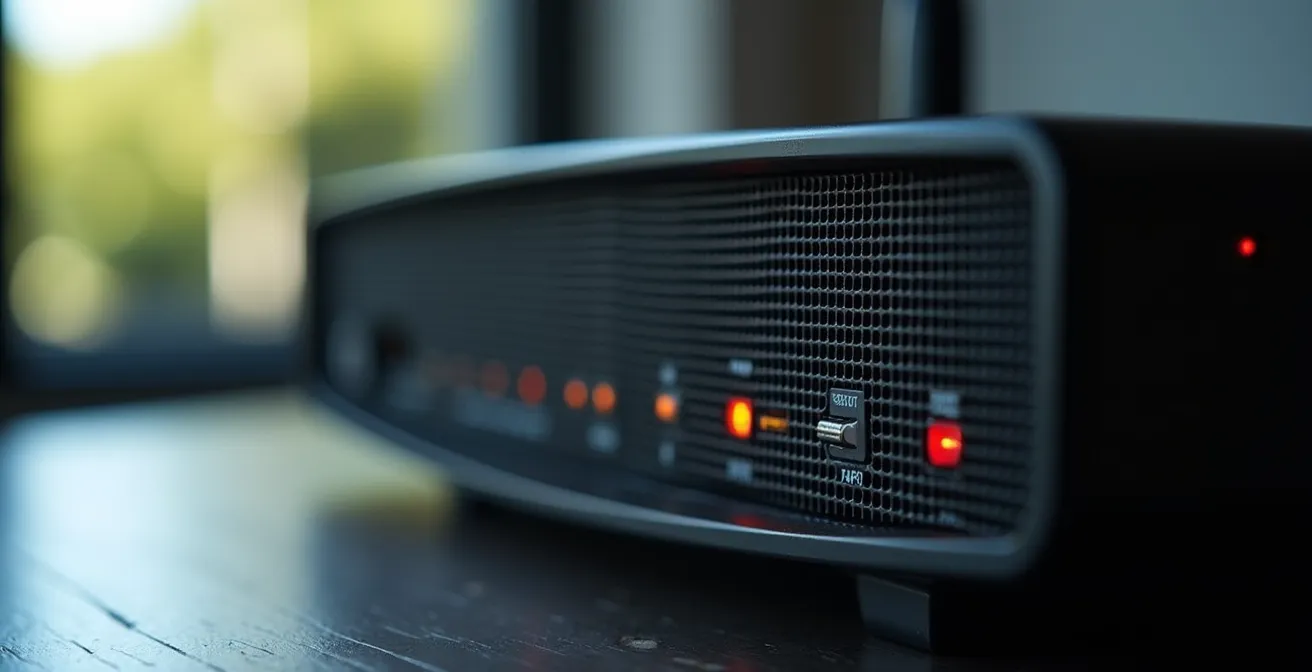
While some consumer routers have SQM built-in, many require open-source firmware like OpenWrt or DD-WRT to unlock their full potential. The process involves setting your upload and download bandwidth limits slightly below their maximum tested speeds (around 85-90%) to give the SQM algorithm headroom to work its magic. This small sacrifice in top-end speed yields a massive gain in stability and responsiveness. The result is a network that can handle a 4K stream, a video call, and online gaming simultaneously without any single activity grinding to a halt.
By taking control of how your router manages data, you transform your network from a chaotic free-for-all into a highly efficient, managed system optimized for the demands of high-bitrate streaming.
Ethernet or Wi-Fi 6: How to Design VR Experiences That Don’t Cause Motion Sickness?
Your physical connection to the router is the foundation of your streaming experience. While Wi-Fi is convenient, it is inherently more susceptible to interference, latency, and instability than a wired connection. For mission-critical tasks like 4K streaming, a direct Ethernet cable from your router to your streaming device (TV, Apple TV, gaming console) is the undisputed champion. It provides the lowest possible latency and the most stable connection, completely eliminating variables like signal strength and channel congestion.
However, running a cable isn’t always practical. This is where modern Wi-Fi technology, specifically Wi-Fi 6 (802.11ax), becomes a viable alternative. Unlike its predecessors, Wi-Fi 6 was designed for a world of many connected devices. It uses a technology called OFDMA to divide a wireless channel into smaller sub-channels, allowing it to communicate with multiple devices simultaneously instead of making them wait in line. This dramatically reduces latency and improves efficiency in congested environments, making it far more suitable for 4K streaming than Wi-Fi 5 (802.11ac).
The importance of low latency cannot be overstated. Technical research indicates that latency thresholds are ideally under 20ms for smooth 4K streaming, but for even more demanding applications like Virtual Reality (VR), that drops to under 10ms to prevent motion sickness. This illustrates a universal principle: a low-latency, stable connection is the cornerstone of any high-quality media experience. Whether you’re watching a movie or exploring a virtual world, a stable connection is non-negotiable.
This table from industry analysis helps compare the performance of different connection types.
| Connection Type | Typical Latency | Stability | Max Speed | Best Use Case |
|---|---|---|---|---|
| Ethernet (Cat 6) | 1-5ms | Excellent | 10 Gbps | Gaming consoles, Smart TVs |
| Wi-Fi 6 (802.11ax) | 10-30ms | Good with OFDMA | 9.6 Gbps | Multiple devices, mobile |
| Wi-Fi 5 (802.11ac) | 20-50ms | Fair | 3.5 Gbps | General streaming |
| Powerline Adapters | 5-15ms | Good | 2 Gbps | No cable option |
For the best 4K streaming results, the hierarchy is clear: Ethernet first. If that’s impossible, a well-configured Wi-Fi 6 network is your next best bet. Anything less is a compromise that invites buffering.
The Data Cap Mistake That Leads to Overage Charges of $50+
Successfully enabling smooth 4K streaming introduces a new challenge: data consumption. High-quality video requires a massive amount of data, and if your ISP enforces a monthly data cap, you can quickly find yourself facing hefty overage fees. Many users, focused solely on fixing buffering, forget to monitor their usage until it’s too late. The numbers are staggering; a single hour of 4K content on a service like Netflix can use a significant amount of data. According to industry reports, Netflix reports 4K streaming consumes approximately 7-10 GB per hour.
At that rate, watching just one 4K movie per night could consume over 600 GB in a month, pushing many standard 1.2 TB data caps to their limit. The common mistake is assuming background data usage is minimal. Autoplaying previews, automatic app updates on your smart TV, and other devices on the network all contribute to your monthly total. A household that streams heavily can easily exceed their cap and incur overage charges that can add $50 or more to their bill.
Managing your data budget doesn’t mean you have to give up 4K. It requires a strategic approach to consumption. Reserve 4K for content that truly benefits from it—visually stunning documentaries or cinematic films. For casual viewing like news, sitcoms, or YouTube videos, manually setting the streaming quality to 1080p in the app’s settings can save an enormous amount of data without a noticeable drop in quality for that type of content. Proactive management is key to enjoying high-quality streaming without an unexpectedly high bill.
Here are key steps to control your 4K data consumption:
- Calculate Your Baseline: Multiply the service’s GB/hour by your daily viewing hours and by 30 to estimate your monthly streaming usage.
- Disable Autoplay: In the settings of services like Netflix and Disney+, turn off autoplay for previews and the next episode. These silent data eaters add up.
- Control App Updates: Go into your smart TV’s system settings and disable automatic app updates. Perform them manually once a week.
- Set a Default Quality: For non-essential viewing, set the default playback quality to 1080p or “Data Saver” mode within the streaming app.
- Monitor Your Usage: Check your data consumption weekly through your ISP’s online portal or a compatible router’s traffic meter. Don’t wait for the end-of-month surprise.
By being mindful of what you stream in 4K and controlling background data, you can stay comfortably within your data cap while still enjoying the ultra-high-definition content that matters most.
Diagnosing the Hardware Bottleneck: TV, Stick, or Modem?
If you’ve optimized your network settings and are still experiencing buffering, it’s time to investigate your hardware. The issue might not be your internet connection at all, but a bottleneck within your own home theater setup. Every device in the chain—from the modem to the router to the streaming stick or smart TV itself—can be a point of failure. Older modems may not support the latest DOCSIS standards, routers may have underpowered processors that can’t handle QoS, and many smart TVs have notoriously weak Wi-Fi chips and insufficient processing power for high-bitrate 4K.
A methodical process of elimination is the best diagnostic tool. Start by connecting a capable laptop directly to your modem via Ethernet and running a speed and bufferbloat test. This establishes your connection’s baseline performance. Next, add the router back into the chain and test again. If performance drops significantly, the router is a likely culprit. Finally, test from the streaming device itself. Many devices, like the Apple TV 4K, have built-in speed test apps. Comparing these results will help pinpoint the weak link.

Sometimes, the issue is more subtle than a simple weak component. It can be a software or firmware issue specific to a device, which can be incredibly frustrating to diagnose.
Case Study: The Roku TV Buffering Mystery
A user with a TCL Roku TV reported constant buffering on 4K content despite a fast internet connection. After extensive testing, they discovered the problem was not the network but the TV’s software. As detailed in community forum discussions, the TV was only allocating a tiny 2-second buffer for 2160p video, while it allocated over 60 seconds for lower resolutions. When the same 4K file was played on an old PC, it buffered for 20 seconds and then played flawlessly. The hardware bottleneck was the TV’s own poor buffer management, which was partially mitigated by using QoS to prioritize its traffic.
Don’t automatically assume your ISP is at fault. A careful, step-by-step diagnosis of your own equipment can often reveal the true source of buffering and lead you to a much cheaper and more effective solution.
Why 1080p Blu-ray Looks Better Than 4K Streaming?
It’s a paradox that frustrates many home theater enthusiasts: you compare a 4K stream from a major service to a standard 1080p Blu-ray disc of the same film, and the disc often looks sharper, clearer, and more detailed. This isn’t a trick of the eyes. The reason lies in one of the most important, yet least understood, aspects of video quality: bitrate. Resolution (the number of pixels, like 4K) tells you the size of the canvas, but bitrate tells you how much data (or “paint”) is used to create the image on that canvas.
Streaming services must deliver video to millions of users with varying internet speeds, so they use heavy compression to keep bitrates low. A typical 4K stream from Netflix or Disney+ might have a bitrate of around 15-25 Mbps. In contrast, a 1080p Blu-ray disc, unconstrained by internet bandwidth, has a much higher average bitrate. In fact, technical analysis shows that a 1080p Blu-ray often uses 30-40 Mbps, which is significantly more data per second than many 4K streams. This “data-rich” image results in fewer compression artifacts, better color depth, and finer detail, especially in fast-moving scenes or dark areas.
This explains why a high-bitrate 1080p source can appear superior to a low-bitrate 4K one. The 4K stream may have more pixels, but each pixel is built from less information. This leads to issues like color banding (ugly stripes in gradients like sunsets) and macroblocking (visible squares in dark or complex scenes), which are less prevalent on a high-bitrate Blu-ray.
Bitrate is the artist’s paintbrush – a 1080p Blu-ray at 30-40 Mbps provides a rich palette of data, while a compressed 4K stream at 15 Mbps is like painting with fewer colors
– Video Quality Expert, Kilowott Media Technology Analysis
Therefore, when you’re facing an unstable connection, choosing a high-quality 1080p stream or disc is often a better choice than forcing a heavily compressed, low-bitrate 4K stream that is prone to buffering and visual flaws.
The $100 HDMI Cable Myth That Wastes Your Audio Budget
In the quest to eliminate buffering, it’s easy to fall for marketing myths, and one of the most persistent is the “premium” HDMI cable. You’ll see cables marketed for $100 or more, promising superior 4K signal quality, faster speeds, and a better picture. This leads many to waste money that could be better allocated to a component that actually impacts streaming performance, like a better router. The truth about HDMI is simple: it’s a digital signal. As long as the cable is built to the correct specification and is not defective, it either works perfectly or it doesn’t. There is no in-between “better quality” picture.
A $10 cable and a $100 cable that are both certified for the same HDMI standard will deliver the exact same ones and zeros to your television, resulting in an identical image. The only factors that justify a higher price are build quality, durability, and length. For runs longer than 15 feet, more expensive “active” or “fiber optic” HDMI cables may be necessary to maintain signal integrity, but for standard lengths, price is not an indicator of performance.
Instead of looking at the price tag, you should look for the official “Ultra High Speed HDMI” certification label on the packaging. This program guarantees the cable can handle the 48Gbps bandwidth required for features like 4K at 120Hz and eARC. A certified $15 cable will perform identically to a certified $100 cable in a typical home theater setup. If you’re seeing digital artifacts like “sparkles” or experiencing signal dropouts (a black screen), the cable is likely faulty or not certified for the bandwidth you’re pushing. Replacing it with another properly certified, inexpensive cable is the correct fix. An expensive cable will not solve buffering, which is a network issue, not a physical cable quality issue.
To make an informed purchase, follow this simple guide:
- Look for Certification: Only buy cables with the official “Ultra High Speed HDMI” certification label, which includes a QR code you can scan to verify authenticity.
- Verify Bandwidth: The cable must support 48Gbps for modern 4K features. This is a function of certification, not price.
- Choose for Length: For any run under 15 feet, any certified cable will work perfectly. Don’t overspend.
- Consider Active Cables for Long Runs: If you need to go 15 feet or more, look for “active” or “fiber optic” HDMI cables designed to boost the signal over distance.
- Test for Stability: Verify the cable works by testing it with the most demanding content you have (e.g., 4K 120Hz with HDR).
- Diagnose Correctly: If you see sparkles or the signal cuts out, the cable is likely the problem. If the video buffers, the network is the problem.
Save your money on overpriced cables and invest it where it can make a real difference, such as a router with excellent QoS capabilities or a wired Ethernet connection.
Key Takeaways
- Your internet’s stability (low latency, no bufferbloat) is far more important for 4K streaming than its advertised top speed.
- Configuring Quality of Service (QoS) on your router is the most effective way to prioritize streaming traffic and prevent buffering caused by other network activity.
- Bitrate, not resolution, is the primary determinant of video quality; a high-bitrate 1080p Blu-ray can look better than a low-bitrate 4K stream.
Native 4K vs. Upscaled: Is the Hardware Cost Justified?
What if your internet connection is simply not stable enough for reliable 4K streaming, even after optimization? One powerful alternative is to stream high-quality 1080p content and let your hardware do the heavy lifting through a process called upscaling. All 4K TVs can upscale, but the quality varies dramatically. Basic upscalers simply stretch the 1080p image to fit the 4K screen, often resulting in a soft or blurry picture. However, premium TVs and streaming devices now employ sophisticated AI-powered upscaling.
This advanced technology uses machine learning and neural networks trained on vast databases of images. Instead of just stretching pixels, the processor analyzes the image in real-time, recognizes objects and textures (like foliage, faces, or text), and intelligently reconstructs details to create a much sharper and more convincing 4K image. The results can be astonishing, often approaching the quality of a native 4K source, especially when the original content is a high-bitrate 1080p Blu-ray.
This technology is a game-changer for users with large libraries of Blu-rays or those stuck on connections that can handle pristine 1080p but struggle with 4K. While the hardware cost is a factor—devices with top-tier AI upscaling processors like the Nvidia Shield Pro or premium TVs from Sony and Samsung carry a significant price premium—the investment can be justified.
Case Study: The Power of AI Upscaling
Processors from brands like Sony and Samsung use machine learning to intelligently enhance sub-4K content. According to performance tests, these systems can upscale a high-bitrate 1080p Blu-ray to a level that is 90-95% as detailed as a native 4K source. The AI upscaler in the Nvidia Shield, for example, has been praised for its ability to add natural-looking detail to older or lower-resolution content without introducing the harsh “edge enhancement” artifacts of traditional upscaling. For viewers with extensive sub-4K media libraries, this performance can easily justify the $200-$500 hardware premium over a standard player.
For those with bandwidth limitations, investing in superior upscaling hardware is a pragmatic and highly effective strategy. It allows you to leverage a more stable, lower-bandwidth 1080p stream while still enjoying a near-4K experience on your display, effectively bypassing the problem of buffering altogether.