
Effective diegetic UI isn’t about visual realism; it’s about mastering cognitive ergonomics to guide players subconsciously.
- True immersion comes from reducing cognitive load, not just placing health bars on a character’s back.
- Leveraging multiple sensory channels like audio and haptics is more critical than purely visual feedback.
Recommendation: Shift your focus from “in-world placement” to designing a cohesive sensory feedback system that makes the interface feel invisible yet perfectly intuitive.
As game designers and interactive media creators, our ultimate goal is to craft worlds so compelling that players forget they are holding a controller or wearing a headset. Yet, we often sabotage this goal with the very tools meant to help: traditional, non-diegetic user interfaces. Health bars, mini-maps, and ammo counters plastered across the screen constantly remind players they are in a game, creating a persistent barrier to true immersion. The common solution has been to pursue diegetic design—interfaces that exist within the game world itself, like a character checking their watch for the time.
While celebrated examples like the health spine in Dead Space are often cited, simply moving UI elements into the 3D space is a superficial fix. This approach misses the fundamental principle that makes diegetic interfaces so powerful. Many attempts end up creating more problems, resulting in cluttered in-game environments or UIs that are difficult to read, ultimately increasing a player’s cognitive load rather than reducing it. The challenge is not just about aesthetics; it’s a complex UX problem involving readability, accessibility, and sensory feedback.
But what if the key wasn’t simply to make the UI part of the world, but to make it an intuitive extension of the player’s senses? This guide reframes diegetic design as a discipline of cognitive ergonomics. We will explore how to engineer sensory cues—visual, auditory, and haptic—that guide player behavior and deliver information without demanding conscious attention. By focusing on how the human brain processes information, you can move beyond screen clutter and design interfaces that are not only immersive but fundamentally more usable. We’ll examine how to leverage audio for navigation, what makes haptic feedback feel natural, and how to avoid the critical mistakes that can shatter a player’s sense of presence.
This article provides a structured path to mastering truly immersive UI. The following sections break down key principles, from maintaining player flow to designing for accessibility and safety in room-scale VR.
Summary: A Designer’s Roadmap to Invisible Interfaces
- Why Diegetic Ammo Counters Keep Players in the “Flow” State?
- How to Navigate Menus Using Only Audio Cues?
- Touch or Haptic Controller: Which Input Feels More Natural for Tools?
- The HUD Clutter Mistake That Overwhelms New Players
- Designing for Colorblindness: The Palette Check You Must Do?
- The Calibration Mistake That Makes Your Film Look Green on TV
- How Screen Reading Changes Neural Pathways for Comprehension?
- Designing Physical Spaces for Room-Scale VR Safety?
Why Diegetic Ammo Counters Keep Players in the “Flow” State?
The concept of “flow” is the holy grail for immersive experiences—a state of complete absorption where the player acts and reacts instinctively, with no separation between thought and action. A cluttered, non-diegetic HUD is the natural enemy of flow. Every time a player’s eyes dart to a corner of the screen to check their ammo count, their focus is broken, pulling them out of the game world and back into the role of a “person playing a game.” A diegetic ammo counter, when designed correctly, eliminates this cognitive interruption.
Take, for instance, a weapon with a digital display built into its model that shows the remaining rounds. Instead of a separate UI element, the information is integrated into the tool the player is already focused on. Checking ammo becomes a natural, in-world action, akin to a soldier glancing at their rifle’s chamber. This maintains what is known as a continuous focus loop. The player’s attention remains within the central field of action, allowing them to process critical information without context-switching. This reduction in cognitive load is not trivial; it frees up mental resources for strategic thinking and faster reaction times.
The designers of Dead Space understood this principle deeply. By integrating all essential UI—health, ammo, stasis energy—into the character’s suit and weapons, they ensured the player never had to look away from the terrifying world of the USG Ishimura. As noted by industry experts, this philosophy elevates the experience by making the “fourth wall” as thin as possible. A well-designed diegetic element isn’t just a cosmetic choice; it’s a strategic tool for maintaining player immersion and enabling the coveted flow state.
How to Navigate Menus Using Only Audio Cues?
While visual diegetic UI gets most of the attention, a truly immersive interface engages multiple senses. Audio is an incredibly powerful yet underutilized channel for conveying complex information without adding a single pixel to the screen. Imagine navigating a deep inventory or skill tree without ever looking at a menu. This is the promise of data sonification—the practice of translating data into non-speech sound to communicate information.
Instead of a visual list, a menu could be represented by a series of distinct audio cues. Moving up or down the menu could change the pitch of a tone, giving the user a sense of vertical position. Swapping between categories, like “Weapons” and “Armor,” could be represented by different timbres—a metallic clank for weapons, a leathery rustle for armor. Stereo panning can be used to indicate horizontal movement, with sounds shifting from the left to the right ear as the player navigates across options. This creates a “spatial audio UI” that exists in the soundscape, not on the screen.

This approach requires careful design to avoid becoming an auditory mess. The key is to create a clear and consistent sonic language. Players must be able to learn and intuitively understand what each sound means. Here are some core principles for effective menu sonification:
- Pitch Variation: Use rising or falling pitches to indicate movement along a vertical axis or hierarchy.
- Timbre Differentiation: Assign unique sound textures (e.g., metallic, wooden, liquid) to different categories of items or options.
- Stereo Panning: Implement left-right sound shifting for horizontal navigation, giving a tangible sense of space.
- Rhythmic Patterns: Use distinct rhythms or pulses to signal different states, such as a selected item versus a hovered-over item.
When executed well, audio-driven menus can feel magical, allowing players to manage their inventory or character while keeping their eyes on the game world. It’s a prime example of using sensory channeling to reduce visual clutter and deepen immersion.
Touch or Haptic Controller: Which Input Feels More Natural for Tools?
Immersion is not just about what you see and hear; it’s about what you feel. In interactive media, particularly VR, haptic feedback is the bridge between a player’s physical actions and the digital world. The choice of input method—be it a sophisticated haptic controller or direct finger tracking—dramatically changes the sense of presence and tool manipulation. The question is not which is better, but which is more natural for the specific interaction you are designing.
The answer lies in proprioception: our innate sense of our body’s position and movement. A good diegetic interaction leverages this sense. For tools that are “grasped,” like a hammer or a sword, a haptic controller often feels more natural. The physical object in the hand, combined with force feedback that simulates weight and resistance, creates a powerful proprioceptive feedback loop. The controller becomes a tangible proxy for the virtual tool. This is supported by immersive VR motor skill research, which has demonstrated that haptic feedback is effective for improving performance in virtual training tasks, regardless of the specific type of feedback used.
Conversely, for “surface-based” interactions requiring fine motor skills, like painting with a brush, writing with a stylus, or manipulating a delicate virtual object, direct finger tracking can feel more intuitive. The absence of a controller allows for a more direct, one-to-one connection with the virtual world. The choice depends entirely on the tool’s intended function.
| Tool Type | Optimal Input Method | Key Benefit |
|---|---|---|
| Grasp-based (hammers, swords) | Haptic controllers | Simulates grip and weight through resistance |
| Surface-based (brushes, styluses) | Finger tracking | Provides precision for fine movements |
| Hybrid tools | Combined haptic + tracking | Proprioceptive feedback loop enhancement |
Ultimately, the most natural-feeling input method is one that successfully convinces the player’s brain that their physical actions have a direct and believable consequence in the virtual space. It’s about matching the haptic and proprioceptive feedback to the player’s expectations for the tool they are wielding.
The HUD Clutter Mistake That Overwhelms New Players
In the pursuit of diegetic purity, there’s a significant pitfall many designers fall into: front-loading all information. The desire to remove a traditional HUD can lead to an over-designed game world where every piece of information is physically embedded in the environment. While immersive in theory, this can create a new form of clutter that is even more overwhelming for new players. Instead of a clear HUD, they are faced with a world of blinking lights, cryptic symbols, and scattered displays, forcing them to hunt for critical information.
This is a classic UX mistake. A good interface, diegetic or not, should follow the principle of progressive disclosure. It should present only the information necessary for the current task, revealing more complex options as the user needs them. In game design, this means a player’s “UI” should evolve with their skills. Dragon Age: Inquisition subtly uses this by making its castle hub a functional, diegetic menu system. The blacksmith, garden, and war council are all in-world locations that unlock as the player progresses, naturally introducing new game systems without a jarring menu pop-up.
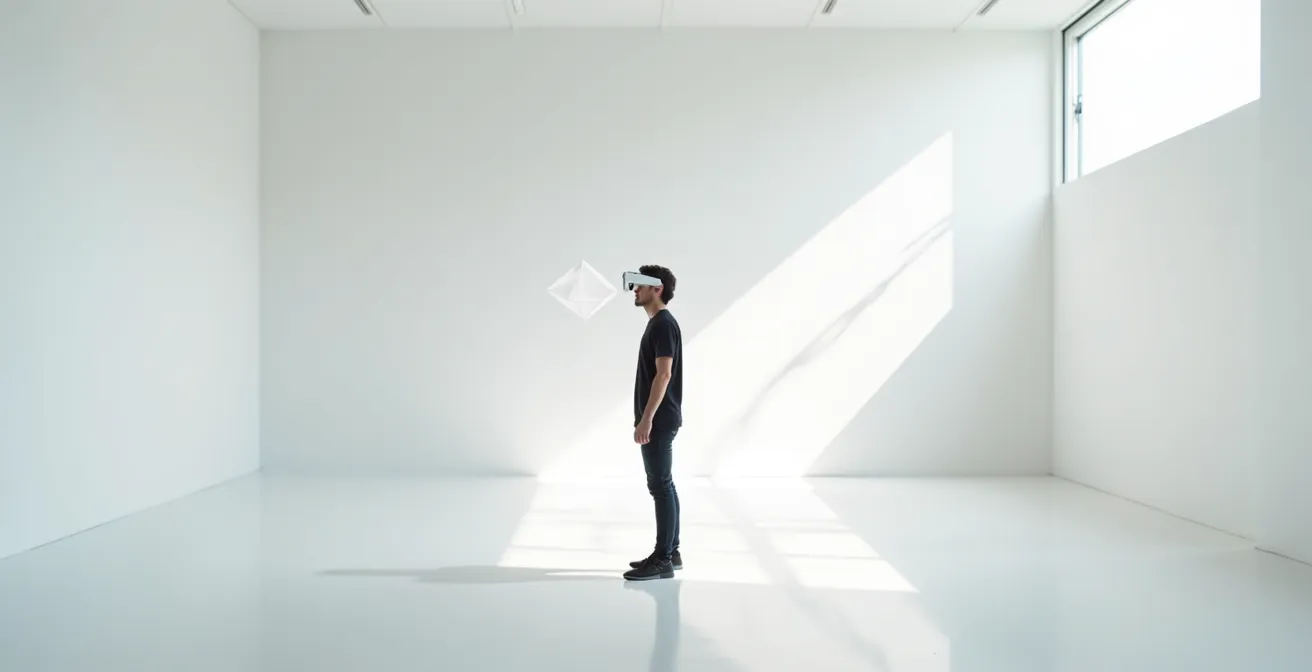
The temptation to make everything diegetic can be a trap. As indie developer Indie Klem points out, a purely diegetic system can impose a heavy cognitive burden. The key is balance and context. A hybrid approach often works best, using diegetic elements for core, frequently-needed information (like health and ammo) while retaining minimalist non-diegetic elements for less critical data or complex menus. This is what The Diegetic Dilemma Newsletter insightfully warns against:
When used sparingly, diegetic UI is pleasant to look at and adds an extra layer of immersion to the game. However, when used systematically, it can become a significant cognitive burden for players.
– Indie Klem, The Diegetic Dilemma Newsletter
The goal is not to eliminate the HUD entirely, but to eliminate the clutter. An effective interface respects the player’s cognitive limits by presenting information cleanly, contextually, and only when it’s needed.
Designing for Colorblindness: The Palette Check You Must Do?
A user-centric design philosophy demands that we create experiences that are accessible to as many people as possible. In visual media, this means confronting the reality of color vision deficiency, or colorblindness. Relying solely on color to convey critical information in your UI—diegetic or not—is a guaranteed way to exclude a significant portion of your audience. A red warning light might be indistinguishable from a green “all clear” light for a player with deuteranopia.
The solution is not to abandon color, but to employ redundant encoding. This principle states that critical information must be conveyed through multiple sensory channels or visual cues simultaneously. If you use color to indicate an enemy’s status, you should also use a distinct shape, a texture pattern, or a sound cue. Overwatch provides a masterclass in this, combining diegetic and non-diegetic elements. Mercy’s staff not only changes color but also displays different icons depending on whether she is healing or boosting damage, ensuring the information is clear even without color perception.
For diegetic UI, this principle is even more crucial, as elements are often smaller and integrated into complex environments. A health bar that depletes could also change in brightness or have a pulsing animation when critical. A status effect could be represented by a unique particle effect in addition to a color tint. The goal is to ensure that no single channel of information is the sole point of failure. This not only aids players with colorblindness but also makes the UI more robust and readable for all players in chaotic, fast-paced situations. Before finalizing any UI design, you must perform an accessibility audit.
Your Action Plan: Multi-Channel Feedback Audit
- Points of Contact: List every UI element that communicates critical status (health, ammo, objectives, warnings).
- Data Collection: For each element, inventory how it communicates information. Is it only by color? Or does it also use shape, brightness, sound, or pattern?
- Coherence Check: Confront these findings with accessibility principles. Does any element rely on a single channel (e.g., red vs. green) for its core meaning?
- Emotional Resonance: Test the interface with colorblind simulation filters. Is the UI still legible? Does the loss of color information make the game unplayable or frustrating?
- Integration Plan: Prioritize fixing the most critical failures. Develop a plan to add redundant cues (e.g., adding unique icons to colored markers, distinct sounds to status changes).
Ultimately, designing for accessibility isn’t a limitation; it’s a catalyst for more creative and effective design. It forces you to think more deeply about how information is perceived and leads to a better experience for everyone.
The Calibration Mistake That Makes Your Film Look Green on TV
As a designer, you meticulously craft your UI on a perfectly calibrated development monitor. The colors are vibrant, the text is crisp, and the contrast is perfect. But the moment a player launches your game on their own screen—be it a TV, a monitor, or a VR headset—your careful design can fall apart. This is the calibration gap: the vast difference between your ideal viewing conditions and the player’s reality. The title’s metaphorical “green film” represents any number of visual artifacts: crushed blacks that hide details, overblown whites that make UI unreadable, or shifted colors that ruin your artistic intent.
This problem is exponentially worse in VR, where each headset has its own unique color gamut, brightness levels, and lens characteristics. A diegetic UI element that looks perfectly integrated on a monitor can appear as a blindingly bright, immersion-breaking object inside a dark virtual environment, causing physical eye strain and glare. The text might become illegible due to resolution differences or “screen door effect.” Therefore, you cannot design a VR interface without constantly testing it on the target hardware.
To combat the calibration gap, you must design for resilience. This means avoiding reliance on subtle color shifts or low-contrast elements for critical information. Use bold shapes, high-contrast values, and, as discussed, redundant encoding. Furthermore, providing user-side calibration options is no longer a luxury but a necessity. Allowing players to adjust gamma, brightness, and UI scale can be the difference between a playable experience and a frustrating one. In VR, some research indicates that to be optimal, text should make up just 1% of the 360-degree space, which shows how sensitive the medium is to visual clutter. The lesson is clear: design defensively. Assume the player’s display is uncalibrated and ensure your UI remains functional and readable under suboptimal conditions.
How Screen Reading Changes Neural Pathways for Comprehension?
The way we process information is deeply tied to the medium through which it’s presented. Reading text on a flat screen engages specific neural pathways related to symbolic interpretation and linear scanning. When we “read” a traditional HUD, our brain is in this screen-reading mode. However, a well-designed diegetic interface can tap into entirely different and more powerful cognitive systems, particularly those related to spatial memory and physical action.
Consider the difference between glancing at a health number in the corner of a screen versus physically turning your character’s head to look at a health monitor on their wrist. The latter action is not just “reading”; it’s a physical interaction with a spatialized object. This engages the brain’s proprioceptive and vestibular systems. The information is no longer an abstract data point; it’s tied to a location in 3D space and a physical movement. This reinforces comprehension and builds muscle memory in a way that passively reading a HUD never could.
Half-Life: Alyx is a testament to this principle. Players check their health and ammo by physically raising their hand and looking at a display on their glove. This simple, intuitive action feels completely natural and reinforces the player’s sense of having a physical body within the game world. According to FOVR Interactive, this approach in Alyx enhances both immersion and gameplay by reinforcing neural pathways for spatial awareness. Each time the player performs this action, they strengthen the neural connection between the physical gesture and the in-game information, making the interface truly feel like an extension of themselves. This is the pinnacle of diegetic design: an interface that is not “read” but is simply “known” through interaction.
Key Takeaways
- Effective diegetic UI prioritizes reducing player cognitive load over pure aesthetic realism.
- A balanced, hybrid approach combining diegetic, non-diegetic, and multi-sensory feedback is often more effective than a purely diegetic system.
- Designing for accessibility and display variance is not an afterthought but a core component of creating robust, user-centric immersive experiences.
Designing Physical Spaces for Room-Scale VR Safety?
In the context of room-scale VR, the physical play space becomes the final frontier of the user interface. Here, the line between the game world and the real world completely dissolves, and the most critical UI is the one that keeps the player safe. A player colliding with a real-world wall is the ultimate immersion-breaker. Traditional, non-diegetic safety systems like the “chaperone” grid are effective but jarring, constantly reminding the player of their physical limitations.
The most elegant solution is to make the safety system itself diegetic. The game world should be designed to naturally guide players away from boundaries and keep key interactions centered in the play area. This can be achieved through clever level design, such as placing interactive workbenches or control panels in the center of the room, creating interaction loops that naturally return the player to a safe zone. In FREEDIVER: Triton Down, in-world signposts and environmental cues guide the player, serving as a diegetic map that feels like part of the world, not an overlay.
You can also design diegetic warnings for when a player nears a boundary. Instead of a grid appearing, perhaps the virtual floor begins to crack, a companion AI warns of a “spatial anomaly,” or a gentle vignetting effect darkens the player’s peripheral vision. These systems provide the necessary safety feedback while maintaining the narrative context and the player’s sense of presence. By integrating safety directly into the fabric of the virtual world, you create the ultimate invisible interface—one that protects the player without ever shattering the illusion. This is the final step in truly user-centric design: anticipating needs so effectively that the solution is never consciously perceived as an interface at all.
To put these principles into practice, your next step should be to prototype and test these sensory-driven UI concepts within your own projects, focusing on player feedback to refine what feels truly intuitive.
Frequently Asked Questions About Diegetic UI and Calibration
Why does my diegetic UI look different in the headset versus on monitor?
Color gamuts and brightness levels in VR headsets drastically alter legibility compared to calibrated monitors, requiring constant testing in target hardware.
How does brightness calibration affect immersion?
A diegetic UI that is too bright in dark virtual environments causes physical eye strain and glare, shattering the sense of presence.
Should users have individual calibration settings?
Yes, user-specific color calibration is necessary as individual differences in perception can make UI unreadable for some users.